Kingston XS2000 2TB Data Recovery: From USB Disconnects to a Successful Recovery
The Problem: A 2TB External SSD That Would Not Stay Connected
This case started with a Kingston XS2000 2TB portable SSD that would not read reliably on the client's Mac. On a Linux PC, the drive was detected and the files were partially accessible, but normal copying failed after a few minutes because the SSD would stop responding and disconnect from USB.
Before doing anything destructive, I ruled out the obvious external causes. Multiple USB ports and cables produced the same behavior, which made it clear that the problem was following the SSD itself.
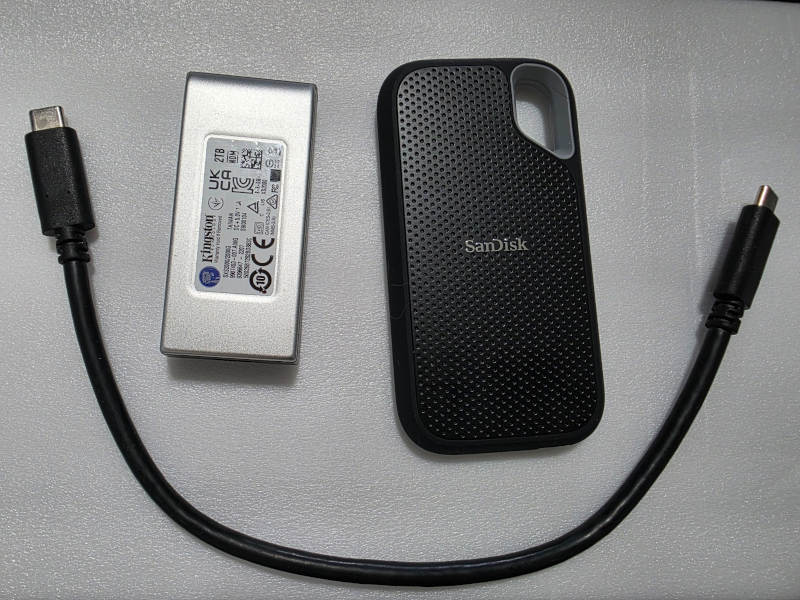 The failing Kingston XS2000 2TB next to the new SanDisk Extreme 2TB SSD that was used for the recovered files.
Why I Did Not Run First Aid, fsck, or chkdsk
The Kingston was formatted as exFAT, and Linux reported that the volume had not been properly unmounted. It would have been easy to start with a file-system repair, but that was not the priority.
When a storage device is unstable, the first goal is to preserve the data. Repair tools can write changes back to the original drive, which is exactly what I wanted to avoid while the SSD was already timing out and disconnecting.
Instead, the plan was to read the drive as gently as possible, create a sector-by-sector image on a separate 4TB HGST hard drive, and work from that image afterward.
What the Linux Logs Showed
The kernel logs quickly confirmed that this was more than a simple exFAT problem. The SSD was timing out during reads, generating I/O errors, and forcing the USB controller to reset the device.
uas_eh_abort_handler
DID_TIME_OUT
I/O error, dev sdb
reset SuperSpeed USB device
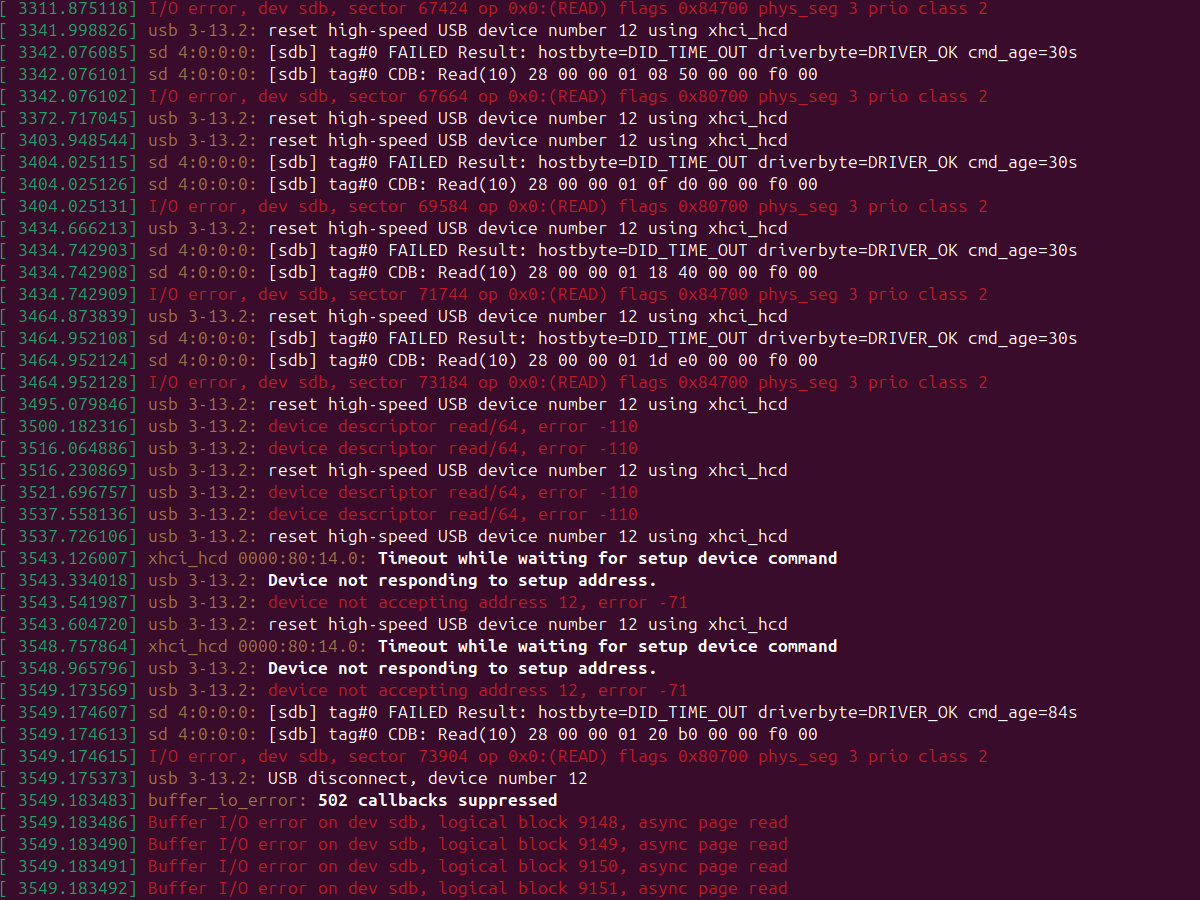 Repeated read timeouts and I/O errors eventually caused the Kingston XS2000 to stop responding and disconnect from USB.
At times the drive stopped responding badly enough that the USB device itself had to be reset and re-enumerated. That explained why normal file copying was unreliable even though the folders could sometimes be opened.
Disabling UAS and Testing a Slower USB Connection
The XS2000 initially connected through UAS, or USB Attached SCSI. For this recovery, I temporarily disabled UAS for this specific Kingston device and forced Linux to use the older usb-storage driver instead.
echo '0951:176b:u' | sudo tee /sys/module/usb_storage/parameters/quirksAfter reconnecting the SSD, Linux confirmed that UAS was being ignored and the drive was using usb-storage instead.
UAS is ignored for this device, using usb-storage insteadThis removed the UAS-specific abort behavior, but the drive still produced read timeouts. I also tested it through USB 2.0. The lower-speed connection did not repair the SSD, but it reduced heat and made the drive somewhat more stable while working around the most difficult areas.
Creating a Full Image with GNU ddrescue
Rather than repeatedly opening folders and trying to copy files directly from the unstable SSD, I used GNU ddrescue to create a full image on the separate HGST recovery drive.
sudo ddrescue -f -n /dev/sdb \
  /mnt/recovery/kingston_sxs2000_full.img \
  /mnt/recovery/kingston_sxs2000_full.map
The map file was an important part of the process. It recorded which areas had already been read successfully, allowing the recovery to be stopped, the Kingston to be disconnected or moved to another USB port, and the process to continue later without starting over.
When Reading from the Beginning Stopped Working
The forward pass repeatedly slowed down and timed out in a low-address region of the SSD. Instead of spending hours retrying the same difficult area, I changed strategy and told ddrescue to work backward from the end of the drive.
sudo ddrescue -f -n -R /dev/sdb \
  /mnt/recovery/kingston_sxs2000_full.img \
  /mnt/recovery/kingston_sxs2000_full.map
That made a major difference. Reading from the end allowed ddrescue to move through the healthy portions of the SSD first. The recovery climbed through 19 percent, 71 percent, 83 percent, and then more than 98 percent while the remaining unread area continued to shrink.
Once the healthy data was safely imaged, I returned to the difficult region and let ddrescue work on the remaining blocks more carefully.
The Final ddrescue Result
By the end of the recovery, the image covered essentially the entire 2TB device. The ddrescue map showed only a tiny unresolved area and one confirmed unreadable 512-byte sector.
rescued:      2048 GB
non-trimmed:  65024 B
bad-sector:     512 B
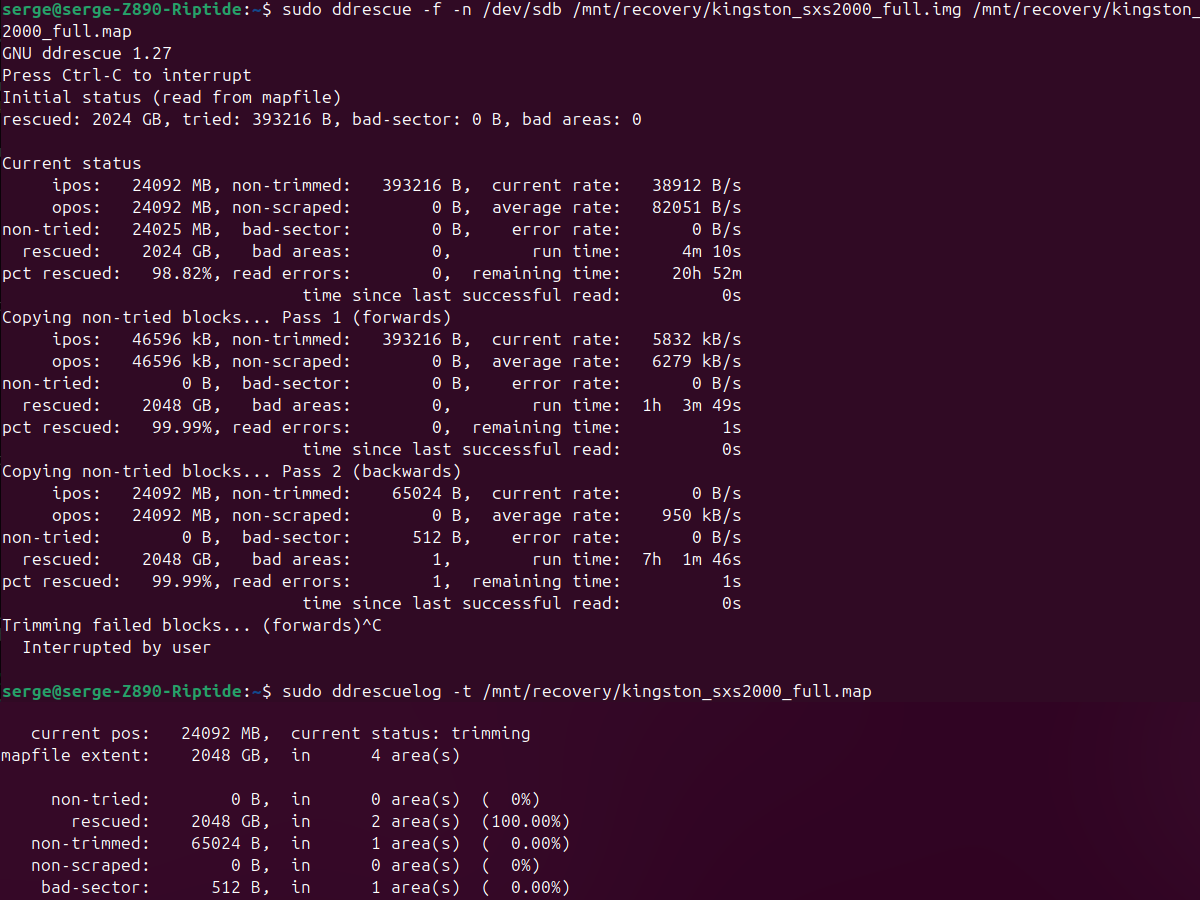 Final ddrescue status after imaging the Kingston XS2000: essentially the full 2TB drive was recovered, with only one confirmed 512-byte unreadable sector.
That result is the reason a drive that looks almost unusable should not automatically be written off. The Kingston was unstable enough to disconnect during ordinary copying, but nearly the entire device could still be recovered with the right imaging strategy.
Working from the Image Instead of the Failing SSD
Once the image was created, there was no reason to keep accessing the failing Kingston for normal file work. I attached the image as a read-only loop device and mounted the recovered exFAT partition from the image.
sudo losetup --find --show --read-only -P \
  /mnt/recovery/kingston_sxs2000_full.img
The directory structure opened normally. The client's folders and files were accessible, so the recovered data could be copied from the stable image instead of from the failing SSD.
Transferring the Recovered Data to a New 2TB SSD
The recovered data was transferred to a new 2TB SanDisk Extreme SSD. Approximately 1.1TB of user data was copied from the recovery image while preserving the original folder structure.
The final transfer completed without real read or write errors. The client received the recovered data on a clean replacement drive instead of having to continue relying on the unstable Kingston.
What to Do If an External Drive Keeps Disconnecting
If an external SSD or HDD repeatedly disappears, reconnects, throws I/O errors, or fails partway through large copies, do not keep hammering it with repeated transfer attempts.
Avoid formatting the drive or running First Aid, fsck, chkdsk, or similar repair tools before the important data is safely copied or imaged. A file-system repair may be useful later, but it should not be the first step when the storage device itself is unstable.
Try another known-good cable and USB port to rule out a simple connection problem. If the drive continues to disconnect, stop using it and move to recovery before the condition gets worse.
External Drive Still Disconnecting?
If your external SSD or HDD continues to disconnect after you have ruled out the cable and USB port, this is the point to stop experimenting and submit a service request.
Sfixy IT Services can diagnose unstable storage devices, create a recovery image when possible, and transfer recovered files to a replacement drive in Boca Raton and surrounding South Florida areas.