Random PC Reboots on a High-End Workstation: A Real Diagnostic Case from Delray Beach
A Workstation That Kept Rebooting at Random
A client from Delray Beach contacted Sfixy IT Services after a recently built professional workstation began rebooting at completely random times. Sometimes the computer would crash during file transfers or heavier work, but more often it would restart while sitting idle with almost no CPU load. Although this specific case brought us to Delray Beach, Sfixy provides advanced computer diagnostics and workstation repair throughout Boca Raton and the wider South Florida area.
Random reboots are one of the more difficult computer problems to diagnose because they rarely point to a single obvious cause. A system can pass one test, fail another, run normally for hours, and then suddenly restart while doing almost nothing. In this case, the workstation was expensive, unusual, and clearly built from high-end parts, which made the problem even more interesting.
Instead of replacing parts at random, the goal was to isolate one possible cause at a time and verify the system after every major change.
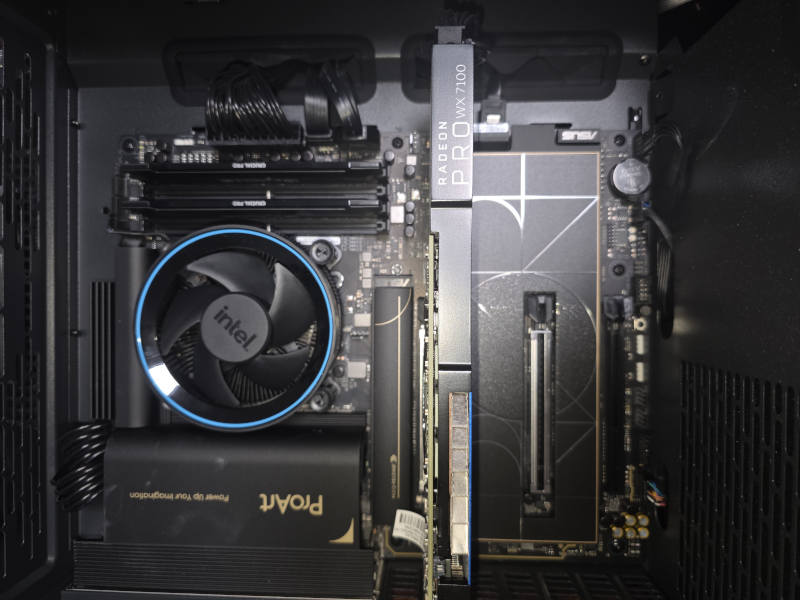 The workstation included an ASUS ProArt motherboard, professional Radeon Pro graphics card, premium components, and an undersized Intel reference cooler.
An Expensive Build with a Few Puzzling Choices
The system was not a typical budget desktop. It was built around an ASUS ProArt Z890 motherboard, a be quiet! Power Zone 2 850W power supply, a Fractal Design compact case, two 2 TB NVMe SSDs, 32 GB of Crucial Pro DDR5-6400 memory, and an AMD Radeon Pro WX 7100 graphics card.
The Radeon Pro WX 7100 is an older professional graphics card, but it is still an interesting workstation-class GPU. For a client using photo software, creative tools, and heavier productivity applications, the presence of a professional Radeon Pro card immediately made this system stand out from a normal home office PC.
The more puzzling choice was the processor. The workstation used an Intel Core Ultra 5 225F. For a system with a ProArt motherboard, professional graphics card, premium power supply, fast storage, and high-end DDR5 memory, that CPU selection felt mismatched. An Intel Core Ultra 5 245 would have been a more natural minimum choice, while an Ultra 7 would have made even more sense for a workstation used for heavier creative work.
The cooling choice was even harder to justify. Despite the premium hardware around it, the CPU was cooled by Intel's basic reference cooler. Under load, the processor quickly reached 104°C, which is effectively the thermal limit where the CPU begins reducing clock speeds and throttling to protect itself. The small Intel reference cooler was noisy, but still could not control temperatures properly.
Why Overheating Was Important, but Not the Only Suspect
A CPU reaching 104°C is not acceptable in a professional workstation. High temperatures can cause throttling, fan noise, reduced performance, and long-term reliability concerns. Replacing the cooler was clearly necessary.
However, overheating did not fully explain the symptoms. The computer often rebooted while sitting idle, not only under heavy CPU load. That meant the cooling problem needed to be corrected, but it could not be treated as the only possible cause.
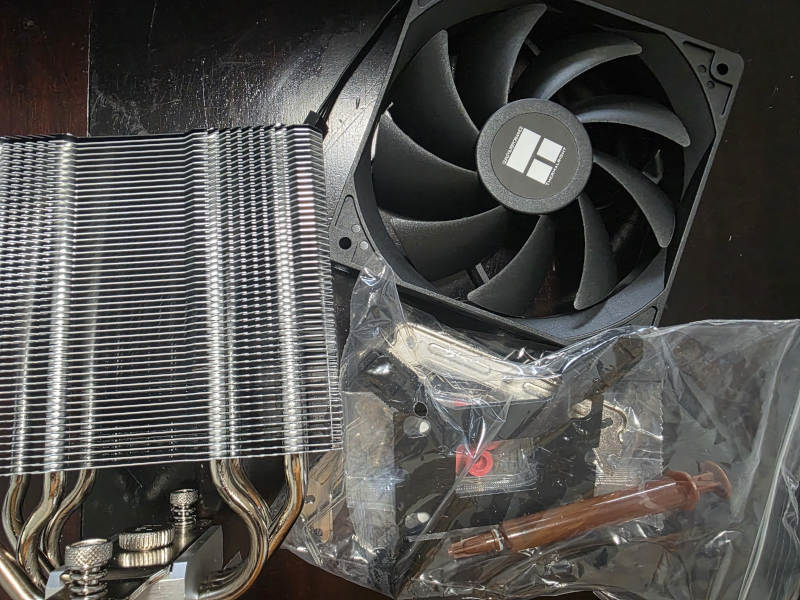 A Thermalright Assassin X120 tower cooler was installed to replace the undersized Intel reference cooler.
After the cooler replacement, CPU temperatures improved dramatically. The workstation was no longer running into critical thermal territory. But the random reboots continued, which confirmed that the instability had more than one contributing factor.
Firmware, Drivers, Memory, and Crash Logs
The next step was firmware and driver cleanup. The motherboard BIOS was outdated, so it was updated first. After the BIOS update, the system also required an Intel ME firmware update, which was completed before continuing with stability testing.
The Radeon Pro driver was also replaced with a current AMD Software: PRO Edition driver. Professional graphics cards often benefit from workstation-focused driver packages rather than general gaming-oriented drivers, especially in systems used for creative and productivity work.
The crashes still continued. Windows Event Viewer showed repeated BugCheck events, including CACHE_MANAGER errors. That type of crash can be related to memory, storage, filesystem cache behavior, drivers, or deeper platform instability, so memory and storage both had to be considered.
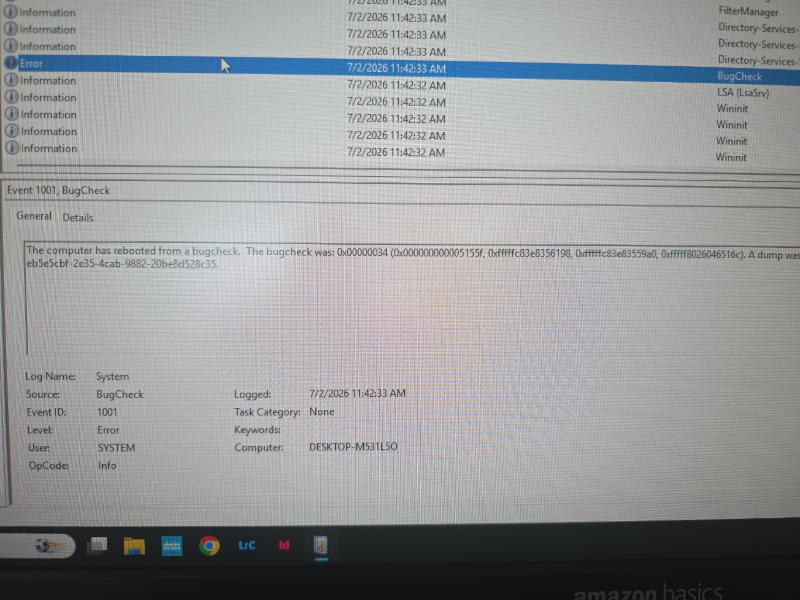 Windows recorded repeated BugCheck events after the workstation unexpectedly rebooted.
The Crucial Pro DDR5-6400 memory was tested and temporarily replaced with a known-good Micron DDR5 kit to isolate the RAM as a possible cause. The system was then tested again under CPU load, memory load, file transfer activity, and idle conditions.
The crashes did not immediately point to a defective memory kit. Storage health was also checked with SMART data and file system scans. The system SSD did not show obvious SMART failure signs, and Windows did not report file system corruption.
The Breakthrough: Removing Unnecessary OEM Software
With the major hardware suspects checked, the system cleanup continued. Unnecessary ASUS driver management software and related background utilities were removed from Windows.
That step turned out to be important. After the ASUS driver utility was removed, the workstation began behaving differently. The original Crucial Pro memory was reinstalled, and the system remained stable through the same kinds of tests that had previously triggered reboots.
It is not always possible to prove that one background utility alone caused a crash, especially when multiple problems were corrected during the same repair. In this case, the final stable result came after addressing several contributing factors: severe CPU overheating, outdated BIOS and Intel ME firmware, outdated drivers, and unnecessary OEM software running in the background.
Stability Testing After the Repair
After the major cleanup and firmware updates, the workstation was tested under several different conditions. CPU stress testing, CPU plus RAM testing, disk activity, large file transfers, Lightroom, Photoshop, as well as leaving it idle overnight, testing sleep/wake cycles, etc. were all used to confirm stability.
The new cooler made a major difference. Instead of reaching 104°C, the CPU stayed around normal workstation operating temperatures under load. During OCCT testing, the CPU package temperature stayed near 59°C during the captured run, with no detected errors.
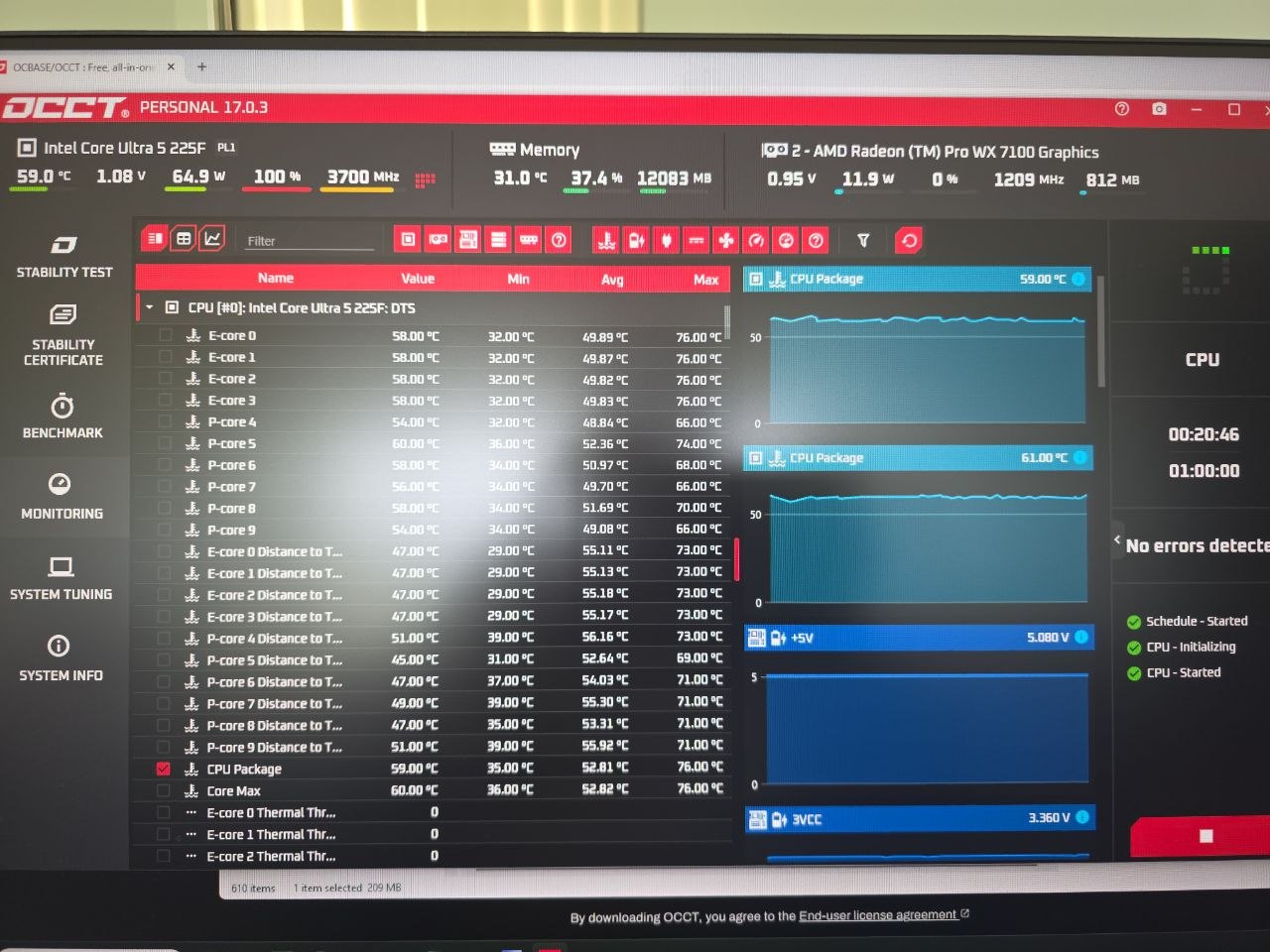 After replacing the cooler and completing firmware, driver, and software cleanup, the workstation passed stability testing with normal CPU temperatures.
Most importantly, the computer no longer rebooted during idle testing or after sleep and wake cycles. A Notepad window was intentionally left open overnight as a simple marker. In the morning, it was still there, confirming that the workstation had not restarted during the night.
What This Repair Shows
This case was a good example of why intermittent computer problems require a careful diagnostic process. It would have been easy to blame the memory, replace the SSD, or recommend a new motherboard too early. Instead, each possible cause was tested separately.
The final result was not achieved by blindly replacing expensive parts. The system became stable after correcting the cooling problem, updating low-level firmware, installing proper drivers, removing unnecessary OEM background software, and validating the workstation with real stress tests and normal usage patterns.
High-end computers can still crash when the component balance is wrong, firmware is outdated, cooling is inadequate, or background utilities interfere with normal system behavior. Expensive hardware does not eliminate the need for proper setup and diagnostics.
Need Help with Random Computer Reboots?
If your computer randomly restarts, turns off by itself, crashes while idle, or becomes unstable during normal work, the cause is not always obvious. It may be cooling, memory, storage, drivers, firmware, Windows corruption, or a combination of several issues.
Sfixy provides advanced computer diagnostics, Windows crash troubleshooting, workstation repair, cooling upgrades, SSD checks, BIOS updates, and stability testing in Delray Beach, Boca Raton, and surrounding South Florida areas.